What you need
You need a CD or DVD drive. Many laptops no longer have one, but an external USB drive works. Windows 11’s Media Player app can also rip CDs. Check its rip settings for the formats it offers. The steps below use Audio Converter from HAYAH, which rips to MP3, FLAC, M4A, WAV, OGG and more.
Rip a CD, step by step
- Install Audio Converter from the Microsoft Store with the button below.
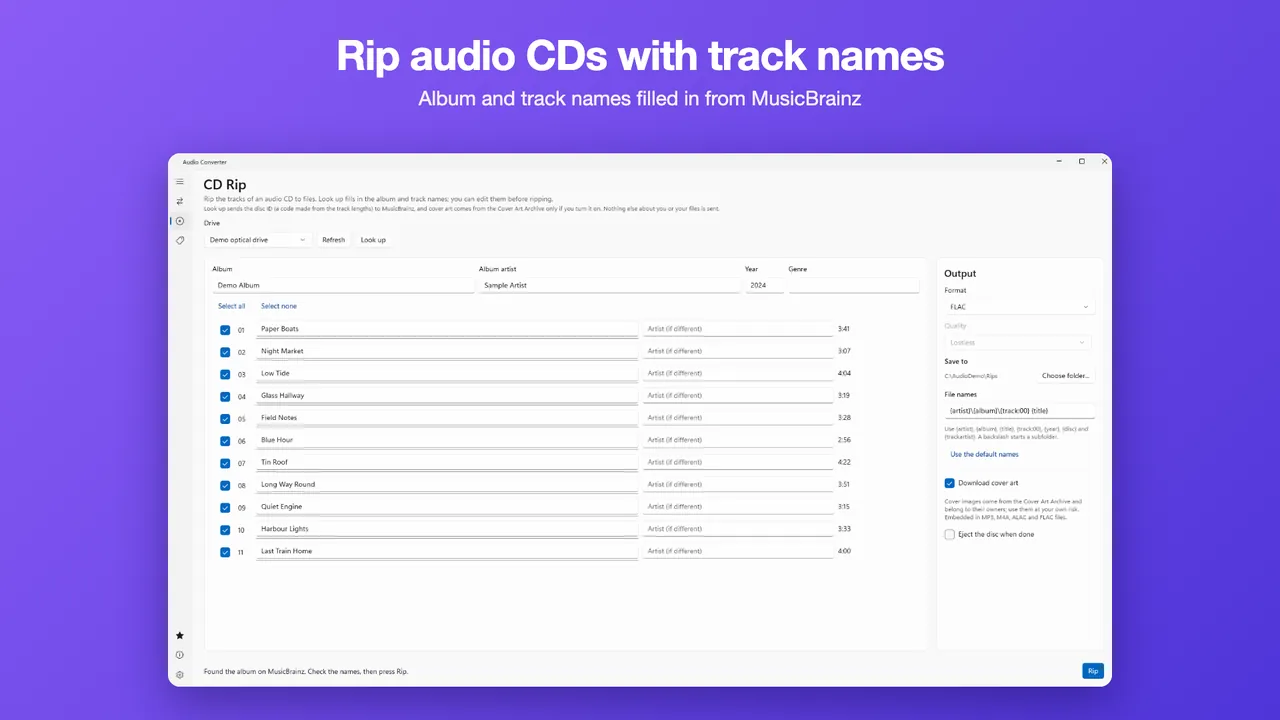
- Put the audio CD in the drive and open the CD Rip page. Choose your drive, and press Refresh if the disc is not shown.
- Press Look up. The app finds the album and track names on MusicBrainz. If several releases match, choose one under Release. If none matches, type the names yourself.
- Check or edit the album, artist and track titles. Use Select all or untick tracks you do not want.
- Choose a Format, such as MP3 for small files or FLAC to keep the sound exactly as on the disc.
- Choose Save to a folder, then press Rip.
For the lookup, only the disc ID is sent to MusicBrainz. Your files never leave your PC.
MP3 or FLAC?
MP3 makes small files that play everywhere. FLAC is lossless: it is larger, but it keeps the audio exactly as it was on the disc, which suits an archive. You can rip the same disc to both.
Free and Pro
CD ripping is free, with the free formats (MP3, M4A, WAV, FLAC and OGG) at the default quality and MusicBrainz track names. Pro adds cover art from the Cover Art Archive and ejecting the disc when the rip is done. Pro is a one-time $9.99 Lifetime Unlock or a $2.99 7-Day Pass. There is no subscription.
Limits to know
Audio Converter is built for everyday ripping. It does not do secure multi-pass ripping or drive offset correction, so it is not aimed at archival-grade verification of badly scratched discs. It does not remove copy protection from files.
Already have audio files to convert? See convert audio to MP3 on Windows.
Questions
Is CD ripping free?
Where do the track names come from?
Can I rip to FLAC?
Do I need a CD drive?
Does it add cover art?
More guides
Prices are in US dollars and may vary by market. The Microsoft Store shows the price for your country before you buy. Microsoft, Windows, Excel and Microsoft Store are trademarks of Microsoft; HAYAH is not affiliated with Microsoft or Apple.